Come installare e attivare eSIM su iPhone e Android (Guida passo passo)

Benvenuto al LAGENIO Smartphone Blog — dove le tue domande sul mobile trovano risposte chiare.
La tecnologia eSIM sta trasformando il modo in cui gli smartphone si connettono alle reti mobili. Invece di inserire una scheda SIM fisica, una eSIM consente agli utenti di scaricare e attivare un piano mobile in digitale.
Oggi, molti smartphone moderni supportano l’eSIM, rendendo più facile cambiare operatore, usare più piani e attivare rapidamente i dati internazionali.
Questa guida spiega come installare e attivare l’eSIM passo dopo passo su iPhone e dispositivi Android, insieme a consigli per la risoluzione dei problemi e risposte alle domande più comuni.
Che cos’è un’eSIM?
Una eSIM (Embedded SIM) è una scheda SIM digitale integrata direttamente nello smartphone. Invece di usare una scheda SIM di plastica rimovibile, il tuo operatore invia un profilo digitale che può essere scaricato sul dispositivo.
I vantaggi dell’eSIM includono:
- Nessuna scheda SIM fisica richiesta
- Attivazione dell’operatore più rapida
- Possibilità di memorizzare più piani
- Facile passaggio tra le reti
- Ideale per i viaggi internazionali
Grazie a questi vantaggi, l’adozione dell’eSIM sta aumentando rapidamente tra i produttori di smartphone e gli operatori in tutto il mondo.
Cosa ti serve prima di installare un’eSIM
Prima di installare la tua eSIM, assicurati che siano soddisfatti i seguenti requisiti.
1. Il tuo telefono supporta l’eSIM
La maggior parte degli smartphone più recenti supporta l’eSIM, tra cui:
- iPhone XS e modelli più recenti
- Samsung Galaxy S20 e successivi
- Google Pixel 3 e successivi
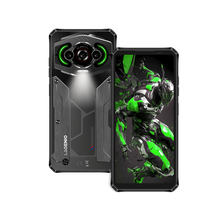
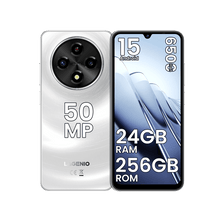
- LAGENIO Rhino 1 Pro
2. Il tuo dispositivo è sbloccato dall’operatore
Alcuni telefoni acquistati tramite operatori sono bloccati sulla loro rete. L’installazione dell’eSIM potrebbe non riuscire se il dispositivo è bloccato.
3. Hai ricevuto un codice QR per l’eSIM o i dettagli di attivazione
Dopo aver acquistato un piano eSIM, il tuo provider in genere invia:
- un codice QR, oppure
- i dettagli per l’attivazione manuale
4. Hai una connessione Internet stabile
Il tuo telefono deve connettersi al Wi-Fi o ai dati mobili per scaricare il profilo eSIM.
Come installare l’eSIM su iPhone
L’installazione di un’eSIM su iPhone richiede di solito solo pochi minuti.
Passo 1: Apri Impostazioni
Vai a: Impostazioni → Cellulare (o Dati cellulare)
Passo 2: Aggiungi eSIM
Tocca: Aggiungi eSIM o Aggiungi piano cellulare
Passo 3: Scansiona il codice QR
Scegli: Usa codice QR
Quindi usa la fotocamera per scansionare il codice QR fornito dal tuo provider eSIM.
Passo 4: Conferma l’installazione
Tocca: Aggiungi piano cellulare
Il tuo iPhone scaricherà la configurazione dell’operatore e installerà il profilo eSIM.
Passo 5: Assegna un’etichetta all’eSIM
Puoi dare un nome al piano:
- Viaggio
- Lavoro
- Personale
- Dati
Questo rende più facile gestire più profili SIM.
Come installare l’eSIM su Android
I dispositivi Android possono avere percorsi di menu leggermente diversi a seconda del produttore, ma il processo di installazione è simile.
Passo 1: Apri Impostazioni
Vai a: Impostazioni → Rete e Internet o Impostazioni → Connessioni
Passo 2: Accedi alle impostazioni SIM
Tocca: Gestione SIM o SIM
Passo 3: Aggiungi eSIM
Seleziona: Aggiungi eSIM o Scarica SIM
Passo 4: Scansiona il codice QR
Usa la fotocamera del telefono per scansionare il codice QR inviato dal tuo operatore.
Passo 5: Scarica il profilo eSIM
Il dispositivo si connetterà al server dell’operatore e scaricherà la configurazione.
Passo 6: Assegna un nome al piano
Assegna un’etichetta per aiutarti a identificare il profilo SIM.
Come attivare un’eSIM
Dopo aver installato il profilo eSIM, devi attivarlo.
Passo 1: Abilita l’eSIM
Vai alle impostazioni SIM e attiva il profilo eSIM.
Passo 2: Impostala come SIM dati predefinita
Seleziona l’eSIM per i dati mobili.
Passo 3: Abilita il roaming dati (se necessario)
Se stai usando un’eSIM da viaggio, abilita: Roaming dati
Passo 4: Riavvia il telefono
Riavviare il telefono aiuta a completare il processo di attivazione.
Come installare manualmente l’eSIM
Alcuni provider offrono l’attivazione manuale invece dei codici QR.
Riceverai:
- Indirizzo SM-DP+
- Codice di attivazione
Passaggi per l’installazione:
- Vai su Aggiungi eSIM
- Scegli Inserisci i dettagli manualmente
- Inserisci l’indirizzo SM-DP+
- Inserisci il codice di attivazione
- Conferma l’installazione
Come usare insieme eSIM e SIM fisica
La maggior parte degli smartphone che supportano eSIM supporta anche la funzionalità dual SIM, che consente di usare una scheda SIM fisica e una eSIM allo stesso tempo. Questa funzione è disponibile su molti iPhone e dispositivi Android moderni.
In molti casi, gli utenti tengono la SIM fisica per chiamate e SMS, così possono continuare a usare il proprio numero principale. Allo stesso tempo, la eSIM può essere impostata come connessione dati mobile predefinita, soprattutto quando si usa un piano dati da viaggio o un’eSIM internazionale.
Ad esempio, LAGENIO Rhino 1 Pro supporta l’uso di una scheda SIM fisica insieme a una eSIM contemporaneamente. Questo consente agli utenti di mantenere attivo il numero principale mentre usano una eSIM per i dati mobili, rendendolo un setup comodo per viaggi, lavoro o gestione di più operatori.
Puoi scegliere quale SIM gestisce:
- chiamate
- messaggi di testo
- dati mobili
Questa configurazione è particolarmente utile per i viaggiatori che vogliono mantenere il proprio numero di casa mentre usano un piano dati locale o internazionale.
Problemi comuni dell’eSIM e soluzioni
Il codice QR non si scansiona
Prova:
- aumentare la luminosità dello schermo
- pulire l’obiettivo della fotocamera
- usare l’attivazione manuale
L’eSIM non si attiva
Possibili soluzioni:
- riavvia il telefono
- attiva e disattiva la modalità aereo
- riconnettiti al Wi-Fi
Nessun segnale dopo l’installazione
Controlla che:
- l’eSIM sia attiva
- sia selezionata la rete corretta
- il roaming sia abilitato, se richiesto
FAQ sull’eSIM
Posso installare un’eSIM prima di partire?
Sì. Molti utenti installano l’eSIM prima della partenza e attivano i dati mobili una volta arrivati.
Quanto tempo richiede l’installazione dell’eSIM?
In genere 2–5 minuti.
Posso memorizzare più profili eSIM?
Sì. Molti smartphone supportano più profili, anche se solo uno o due possono essere attivi contemporaneamente.
Posso rimuovere un’eSIM?
Sì. Puoi eliminare il profilo eSIM dalle impostazioni del dispositivo in ցանկացած momento.
Posso trasferire un’eSIM su un altro telefono?
Di solito devi richiedere un nuovo codice QR al tuo operatore.