So verschiebst du Fotos auf eine SD-Karte unter Android (Schritt-für-Schritt-Anleitung)

Smartphones machen es heute einfacher denn je, die schönsten Momente des Lebens festzuhalten, doch diese Erinnerungen können den internen Speicher Ihres Telefons schnell füllen. Fotos in hoher Auflösung, 4K-Videos und heruntergeladene Dateien konkurrieren alle um wertvollen Speicherplatz und führen zu Speicherwarnungen sowie langsamerer Leistung.
Wenn Ihr Android-Smartphone eine microSD-Karte unterstützt, ist das Verschieben Ihrer Fotos eine der einfachsten Möglichkeiten, Speicherplatz freizugeben und Ihre Dateien sicher und organisiert zu halten.
In dieser Anleitung erfahren Sie, wie Sie Fotos auf einer Android-Karte auf eine SD-Karte verschieben, wie Sie Ihre Kamera so einstellen, dass sie direkt auf der SD-Karte speichert, und was zu tun ist, wenn etwas nicht wie erwartet funktioniert.
Warum Fotos auf eine SD-Karte verschieben?
Das Verschieben Ihrer Fotos auf eine SD-Karte bietet mehrere praktische Vorteile, die über das bloße Schaffen von mehr Speicherplatz hinausgehen.
Internen Speicher freigeben
Wenn Ihre Fotobibliothek wächst, füllt sich der interne Speicher Ihres Smartphones schnell. Das Verschieben von Fotos auf eine SD-Karte schafft Platz für Apps, Systemupdates und eine flüssigere alltägliche Nutzung.
Mehr Fotos und Videos speichern
Moderne Smartphone-Kameras erzeugen immer größere Dateien. Ob Sie Urlaubsfotos aufnehmen, Familienmomente festhalten oder 4K-Videos drehen – eine microSD-Karte mit hoher Kapazität bietet Ihnen deutlich mehr Platz für Ihre Inhalte.
Ihre Erinnerungen organisiert halten
Viele Nutzer speichern Fotos lieber getrennt von Apps und Systemdateien. Das erleichtert Backups und macht es bequemer, Ihre Fotos zwischen kompatiblen Geräten zu übertragen.
Ideal für Reisende und Content Creator
Wenn Sie häufig reisen, wandern, campen oder Videos für soziale Medien erstellen, können Sie mit erweiterbarem Speicher weiter aufnehmen, ohne ständig alte Dateien löschen zu müssen.
So verschieben Sie Fotos auf eine SD-Karte unter Android
Die genauen Schritte können je nach Smartphone-Hersteller leicht variieren, der Ablauf ist jedoch bei den meisten Android-Geräten ähnlich.
Schritt 1: SD-Karte einsetzen
Setzen Sie eine kompatible microSD-Karte in Ihr Android-Smartphone ein.
Wenn Ihr Smartphone die Karte nicht sofort erkennt, starten Sie das Gerät neu oder prüfen Sie Einstellungen > Speicher, um zu bestätigen, dass die SD-Karte erkannt wurde.
Schritt 2: Öffnen Sie Ihren Dateimanager
Die meisten Android-Smartphones enthalten einen integrierten Dateimanager namens:
- Dateien
- Meine Dateien
- Dateimanager
- Files by Google
Öffnen Sie die App und navigieren Sie zu Ihren Fotoordnern.
Schritt 3: Suchen Sie Ihre Fotos
Die meisten Kamerafotos werden in Ordnern wie diesen gespeichert:
- DCIM/Camera
- Pictures
- Downloads (für gespeicherte Bilder)
Wählen Sie die Fotos aus, die Sie verschieben möchten.
Schritt 4: Tippen Sie auf "Verschieben"
Nachdem Sie Ihre Fotos ausgewählt haben:
- Tippen Sie auf das Drei-Punkte-Menü oder auf Mehr.
- Wählen Sie Verschieben.
- Wählen Sie Ihre SD-Karte als Ziel aus.
- Wählen oder erstellen Sie einen Ordner.
- Bestätigen Sie die Übertragung.
Je nach Anzahl der Fotos kann die Übertragung von wenigen Sekunden bis zu mehreren Minuten dauern.
Schritt 5: Überprüfen Sie die Übertragung
Sobald die Übertragung abgeschlossen ist:
- Öffnen Sie den Ordner der SD-Karte.
- Bestätigen Sie, dass Ihre Fotos korrekt angezeigt werden.
- Löschen Sie die Originale erst aus dem internen Speicher, nachdem Sie überprüft haben, dass jede Datei erfolgreich übertragen wurde.
So speichern Sie Fotos direkt auf der SD-Karte
Anstatt alle paar Wochen Fotos zu verschieben, erlauben viele Android-Smartphones, neue Fotos direkt auf der SD-Karte zu speichern.
So geht's:
- Öffnen Sie die Kamera-App.
- Tippen Sie auf Einstellungen.
- Suchen Sie nach Speicherort oder Speichern unter.
- Wählen Sie SD-Karte.
Ab jetzt werden neue Fotos direkt auf Ihrer Speicherkarte und nicht mehr im internen Speicher gespeichert.
Hinweis
Nicht jedes Android-Smartphone unterstützt diese Funktion.
Einige Hersteller entfernen die Option, während bestimmte Kameramodi oder Kamera-Apps von Drittanbietern immer im internen Speicher speichern.
Wenn Sie die Einstellung nicht sehen, müssen Sie Fotos manuell mit dem Dateimanager verschieben.
Fehlerbehebung: Warum kann ich keine Fotos auf meine SD-Karte verschieben?
Manchmal funktioniert die Übertragung von Fotos nicht wie erwartet. Hier sind die häufigsten Probleme und wie Sie sie beheben können.
SD-Karte wird nicht erkannt
Wenn Ihr Smartphone die SD-Karte nicht findet:
- Setzen Sie die Karte erneut ein.
- Starten Sie Ihr Smartphone neu.
- Testen Sie die Karte in einem anderen Gerät.
- Prüfen Sie, ob die SD-Karte beschädigt ist.
Die Option Verschieben fehlt
Einige Galerie-Apps erlauben nur das Kopieren statt das Verschieben.
Wenn Sie Verschieben nicht sehen, verwenden Sie stattdessen den Dateimanager Ihres Smartphones, der in der Regel vollständige Dateiverwaltungsoptionen bietet.
Die SD-Karte ist schreibgeschützt
Wenn Ihr Smartphone anzeigt, dass die SD-Karte nur lesbar ist:
- Prüfen Sie, ob der Kartenadapter einen physischen Sperrschalter hat.
- Formatieren Sie die Karte bei Bedarf neu (nachdem Sie Ihre Daten gesichert haben).
- Ersetzen Sie die Karte, wenn sie beschädigt ist.
Nicht genügend Speicherplatz
Auch große SD-Karten können voll werden.
Löschen Sie unnötige Dateien oder wechseln Sie zu einer Karte mit größerer Kapazität, wenn Sie häufig Fotos und Videos aufnehmen.
Fotos verschwinden nach dem Verschieben
Das passiert normalerweise, weil die Übertragung unterbrochen wurde.
Entfernen Sie die SD-Karte nicht, während Dateien kopiert werden, und warten Sie immer, bis die Übertragung abgeschlossen ist, bevor Sie die Karte auswerfen.
Langsame Übertragungsgeschwindigkeit
Die Übertragungsgeschwindigkeit hängt größtenteils von der SD-Karte selbst ab.
Die Verwendung einer schnellen microSD-Karte mit UHS-I oder UHS-II kann die Übertragungszeiten deutlich verkürzen, insbesondere beim Verschieben großer 4K-Videodateien.
Warum erweiterbarer Speicher immer noch wichtig ist
Viele moderne Smartphones haben die Unterstützung für microSD-Karten vollständig entfernt, sodass Nutzer nur auf internen Speicher oder Cloud-Abos angewiesen sind.
Für Menschen, die regelmäßig Videos aufnehmen, Tausende von Fotos machen oder ohne zuverlässigen Internetzugang reisen, bleibt erweiterbarer Speicher eine der nützlichsten Smartphone-Funktionen.
Besonders wertvoll ist er für:
- Outdoor-Abenteurer
- Reisefotografen
- Mobile Content Creator
- Wanderer und Camper
- Nutzer, die lange 4K-Videos aufnehmen
Eine microSD-Karte ermöglicht es Ihnen, weiter aufzunehmen, ohne ständig alte Dateien zu löschen oder für zusätzlichen Cloud-Speicher zu bezahlen.
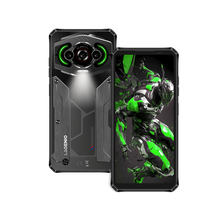
Ein Beispiel ist LAGENIO Eagle Pro, das eine integrierte Action-Kamera mit erweiterbarem microSD-Speicher von bis zu 1TB kombiniert. Entwickelt für Outdoor-Fotografie und Abenteueraufnahmen, ermöglicht es Nutzern, hochauflösende Fotos und flüssige 4K-Videos aufzunehmen, ohne sich Sorgen machen zu müssen, dass der Speicher ausgeht – selbst auf langen Reisen. Statt mehrere Geräte mitzunehmen oder ständig Dateien zu löschen, können Nutzer alle Inhalte direkt auf einem Smartphone mit großem, erweiterbarem Speicher aufnehmen, bearbeiten und speichern.
Abschließende Gedanken
Das Verschieben von Fotos auf eine SD-Karte ist eine der einfachsten Möglichkeiten, Speicherplatz freizugeben und Ihr Android-Smartphone effizient laufen zu lassen. Ob Sie jahrelange Familienfotos organisieren oder Platz für Ihr nächstes Abenteuer schaffen – der Vorgang dauert nur wenige Minuten.
Wenn Ihr Smartphone das direkte Speichern von Fotos auf der SD-Karte unterstützt, können Sie mit dieser Einstellung künftig noch mehr Zeit sparen. Und für Nutzer, die häufig Fotos in hoher Qualität aufnehmen oder 4K-Videos drehen, kann die Wahl eines Smartphones mit erweiterbarem Speicher die alltägliche Speicherverwaltung deutlich erleichtern.
Wenn Sie die obigen Schritte befolgen, haben Sie mehr Platz für das, was wirklich zählt – jeden Moment festzuhalten, ohne sich Sorgen machen zu müssen, dass der Speicher ausgeht.