How to Record Calls on Android: 5 Easy Methods

Recording phone calls can help you save important conversations, review business discussions, keep customer service records, or remember important details from a conversation. However, many Android users still don't know how to record calls on Android, because the available options depend on the phone model, Android version, region, and carrier.
The easiest way to record calls on Android is usually by using the built-in call recording feature provided by your phone manufacturer or the Google Phone app. In this guide, we will explain the most reliable methods, including how to automatically record calls on Android, where to find saved recordings, and what to do if your phone does not support call recording.
Method 1: Use the Built-in Call Recording Feature on Android
The most convenient way to record phone calls is using the built-in call recording feature that comes with many Android smartphones.
Many manufacturers provide their own phone apps with integrated recording options, including Samsung, Xiaomi, OPPO, OnePlus, Motorola, and other Android phone brands. However, the availability of this feature depends on your location, software version, and local regulations.
To record a call using the built-in feature:
- Open the Phone app.
- Make or answer a phone call.
- Look for the Record button during the call.
- Tap Record to start recording.
- Tap again to stop recording when the conversation ends.
After the call finishes, the recording is usually saved automatically and can be accessed through the Phone app or Recorder app.
Some Android phones also support automatic recording features, allowing you to:
- Automatically record calls from unknown numbers
- Automatically record calls from selected contacts
- Record every incoming and outgoing call
If your phone does not show a Record button, the feature may not be available in your region or on your current software version.
Method 2: Record Calls Using the Google Phone App
Many Android devices use the Google Phone app as their default dialer. If your device supports this feature, you can record calls directly through the app without installing additional software.
To check whether call recording is available:
- Open the Phone app.
- Tap the three-dot menu.
- Select Settings.
- Look for Call recording.
- Enable available recording options.
Depending on your device, you may be able to:
- Record individual calls manually
- Automatically record calls from unknown numbers
- Automatically record calls from specific contacts
However, Google Phone call recording is only available on supported devices and in supported regions. Some phones may not show the option because of manufacturer settings, carrier restrictions, or local privacy laws.
For Pixel users and other Android devices using Google Phone, updating the Phone app and system software can help ensure you have the latest supported features.
Method 3: Check Your Phone Manufacturer's Call Settings
If you cannot find call recording in the Google Phone app, your smartphone may use a customized dialer created by the manufacturer.
Many Android brands add their own call management features.
For example:
Samsung Galaxy Phones
Samsung phones often provide call recording options directly inside the Phone app settings in supported regions.
Xiaomi Phones
Some Xiaomi devices include call recording options through the default MIUI or HyperOS Phone app.
OPPO and OnePlus Phones
Selected models may also provide built-in call recording depending on regional software versions.
The exact steps vary between brands, but you can usually find the option by checking:
Phone App → Settings → Call Recording
or
Phone App → Settings → Calling Settings
This is why checking your phone's own dialer settings is often the best step before installing any third-party application.
Method 4: Use a Third-Party Call Recording App (Limited Compatibility)
Third-party call recording apps are another option, but their effectiveness depends heavily on your Android version and phone model.
Older Android devices may support these apps more easily, while newer Android versions include stronger privacy protections that limit how applications can access phone call audio.
As a result, some recording apps may:
- Record both sides of a conversation successfully
- Only record your own voice
- Use speaker mode to capture audio
- Require additional permissions
Before installing any third-party call recorder, check:
- Whether it supports your Android version
- Whether it supports your phone model
- User reviews and ratings
- Required permissions
A third-party app should be considered a backup solution rather than the first choice. Built-in recording features are usually more reliable because they are designed specifically for your device.
Method 5: Record Calls Using Speaker Mode and Another Device
If your Android phone does not support call recording, you can use a simple alternative method:
- Put the phone call on speaker mode.
- Place another phone, voice recorder, or recording device nearby.
- Record the conversation externally.
This method does not require special software, but the audio quality depends on the environment. A quiet room and a high-quality microphone can significantly improve the result.
Although it is not the most convenient solution, it can work when software-based recording options are unavailable.
Where Are Call Recordings Saved on Android?
After learning how to record calls on Android, many users also want to know where the recorded files are stored.
The exact location depends on your phone brand and recording method.
Common places to check include:
- Phone app → Call recordings
- Recorder app
- File Manager → Audio folders
- Search function in File Manager
If you cannot find your recordings, try searching your phone storage for terms such as:
- Call
- Record
- Recording
- Audio
Some Android phones also allow you to manage recordings directly from the Phone app, including playing, sharing, or deleting saved files.
Why Can't I Record Calls on My Android Phone?
If you cannot find a call recording option, there are several possible reasons.
Your Phone Does Not Support Call Recording
Not every Android phone includes this feature. Some manufacturers disable it on certain models or regions.
Your Region Has Restrictions
Call recording laws vary around the world. Some regions require both participants to be informed before recording.
Your Carrier Blocks the Feature
Some mobile operators restrict call recording functions on specific devices.
Your Software Is Outdated
Updating your Android system and Phone app may add support or fix compatibility issues.
Are Call Recordings Legal on Android?
Before recording any phone conversation, always check the laws in your location.
Different countries and regions have different requirements:
- Some allow recording if one participant knows about it.
- Some require permission from everyone involved.
When required, inform the other person before recording. This helps protect everyone's privacy and avoids potential legal problems.
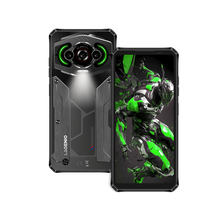
Do Rugged Android Phones Support Call Recording?
Many rugged Android phones are designed for outdoor workers, field professionals, and users who need reliable communication in challenging environments.
Some rugged phones include built-in call recording features through their Android phone system. This can be useful for:
- Recording work instructions
- Saving customer communication details
- Keeping important field information
On rugged Android phones that support call recording, users can usually enable this feature in two ways:
Method 1: Enable Recording from the Quick Settings Panel
- Swipe down from the top of the screen to open the Quick Settings panel.
- Swipe right to access the third page of available shortcuts.
- Tap the recording option to enable call recording.
Method 2: Enable Call Recorder from Settings
You can also find the feature through the system settings:
Settings → Smart & Convenient → Call Recorder
From here, users can manage call recording settings and enable the feature when needed.
However, like other Android devices, call recording availability depends on the phone model, software version, and region. Some devices may have different menus or recording options depending on the system configuration.
Final Thoughts: How to Record Calls on Android Easily
Knowing how to record calls on Android makes it easier to save important conversations whenever you need them. For most users, the best solution is using the built-in recording feature provided by the phone manufacturer or the Google Phone app.
If your device does not support native recording, third-party apps or external recording methods may provide alternatives, although compatibility can vary.
Before recording any conversation, remember to check local laws and respect the privacy of others. With the right method, Android users can safely record and manage important phone calls.