How to Enable Underwater Camera Mode on LAGENIO Eagle Pro

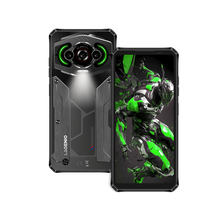
LAGENIO Eagle Pro is designed for outdoor adventures and underwater shooting. With the built-in Underwater Camera Mode, you can easily capture photos and videos even when touch operation is unavailable underwater.
Follow the steps below to enable and use Underwater Camera Mode on Eagle Pro.
Step 1: Open the Notification Panel
Swipe down from the top of the screen to open the Notification Panel.
Step 2: Open the Quick Settings Panel
Swipe down again to expand the Quick Settings Panel.
Step 3: Find the Underwater Camera Shortcut
Swipe left through the quick setting icons until you find the Underwater Camera button.
Tap the button to enter Underwater Camera Mode.

Important Instructions
Once Underwater Camera Mode is enabled, touch controls will be disabled. Please follow the on-screen instructions carefully.
- Touch is disabled in this mode.
- Press the Custom Key to exit.
- Press Volume Up to take a photo.
- Press Volume Down to record video.
- In Underwater Camera Mode, press and hold Volume Up, then press Volume Down to switch between the front and rear cameras.

How to Use Underwater Camera Mode
- Take a photo: Press the Volume Up button.
- Record a video: Press the Volume Down button.
- Switch cameras: Press and hold the Volume Up button, then press the Volume Down button to switch between the front and rear cameras.
- Exit the mode: Press the Custom Key.
Tips for Better Underwater Shooting
- Make sure all waterproof seals are properly closed before entering water.
- Rinse the phone with clean water after use in salt water.
- Dry the device completely before charging.
- Use clear water environments for the best photo and video quality.
With Underwater Camera Mode, LAGENIO Eagle Pro is ready to capture your adventures anywhere — from rainy hikes to underwater exploration.